
Installing Qompta
The Qompta interface is in French. On-screen labels are therefore quoted in French, with an English translation in brackets the first time they appear.
On this page
Qompta runs entirely on your computer. No account to create, no server to contact, nothing to configure before you start.
1. Download
Each version publishes its packages on the releases page.
| File | For |
|---|---|
Qompta-<version>-setup.exe | Windows 10 and 11, 64-bit |
Qompta-<version>.deb | Debian, Ubuntu and derivatives, 64-bit |
Qompta-<version>.AppImage | Any other Linux distribution |
2. Windows
- Run
Qompta-<version>-setup.exe. - Windows SmartScreen shows a warning. The installer is not signed with a commercial certificate, because those cost several hundred francs a year. Click Informations complémentaires (More info), then Exécuter quand même (Run anyway).
- The installer asks where to install. It requires no administrator rights and installs for your user account only.
Qompta then starts on its own and adds a shortcut to the Start menu and to the desktop.
Where your data lives
| What | Where |
|---|---|
| Encrypted database | %APPDATA%\Qompta\qompta.qdb |
| Encryption key | %APPDATA%\Qompta\qompta.key (protected by Windows DPAPI) |
| Automatic backups | Documents\Qompta\Sauvegardes |
3. Linux
Debian, Ubuntu, Mint…
sudo apt install ./Qompta-<version>.deb
Use apt, not dpkg -i: apt also installs the libraries Electron needs along the way. If you used dpkg and the installation stopped halfway, finish it with:
sudo apt-get install -f
Then start Qompta from your applications menu or with qompta in a terminal.
Other distributions
The AppImage needs no installation and does not ask for root rights:
chmod +x Qompta-<version>.AppImage
./Qompta-<version>.AppImage
If the window does not open, you are missing Electron's system libraries:
sudo apt-get install -y libnss3 libnspr4 libasound2 libgtk-3-0 libgbm1
Where your data lives
| What | Where |
|---|---|
| Encrypted database | ~/.config/Qompta/qompta.qdb |
| Encryption key | ~/.config/Qompta/qompta.key |
| Automatic backups | ~/Documents/Qompta/Sauvegardes |
4. First launch: the recovery key
On the very first launch, Qompta explains that it encrypts all of your data and offers you two paths.
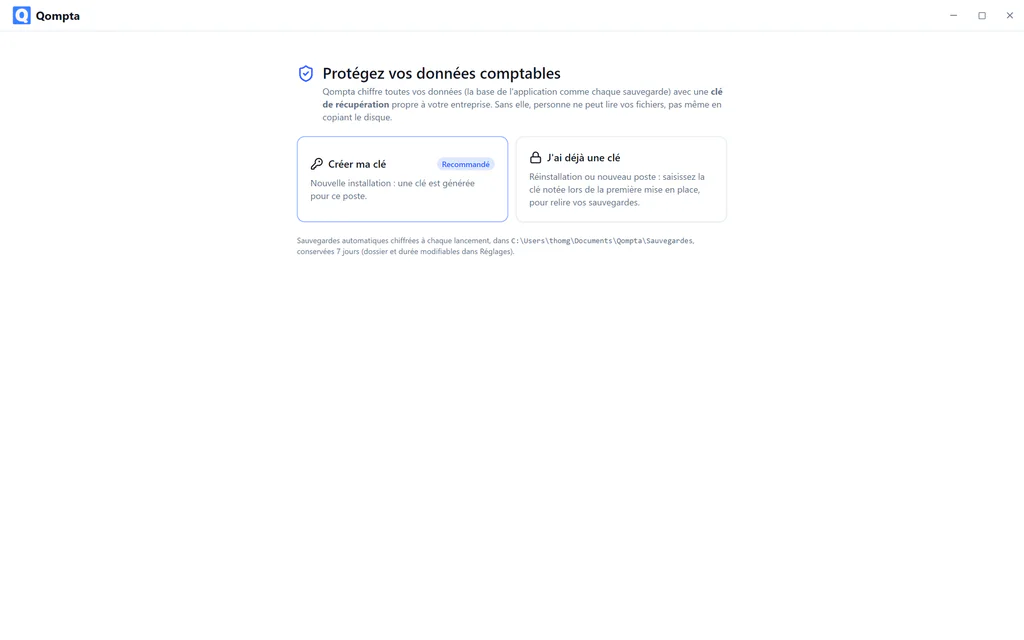
Choose « Créer ma clé » (Create my key): a key is generated for this computer.
The key is shown only once
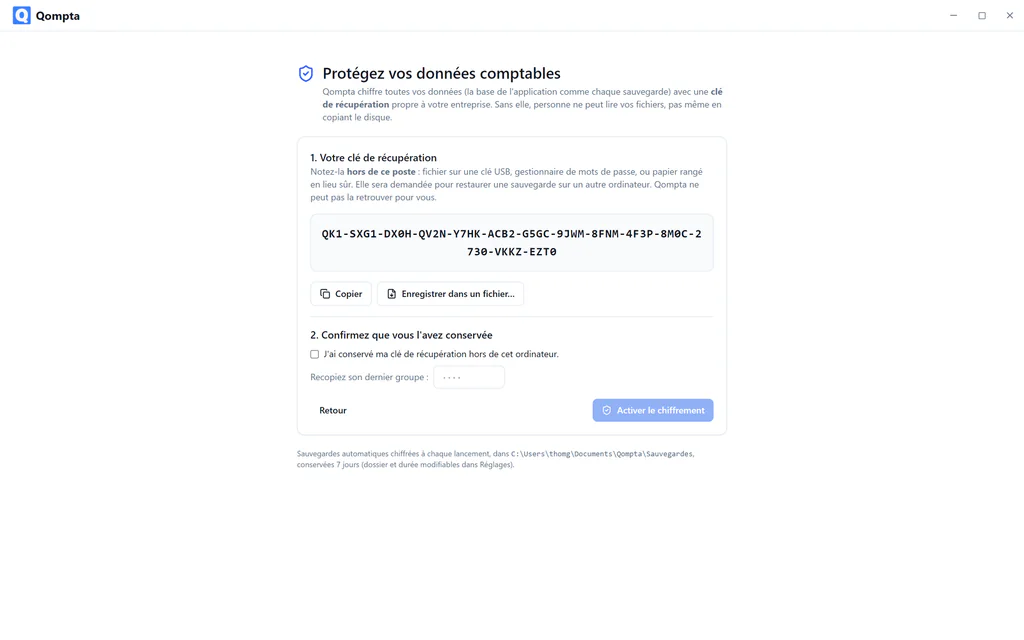
It looks like this:
QK1-VKCW-J87C-Y4RX-JWTM-2QP2-9FQT-KK6W-ZACR-300M-C9PE-H7BP-6H0Y-J450
Two buttons help you: « Copier » (Copy) puts it on the clipboard; « Enregistrer dans un fichier… » (Save to a file…) writes it wherever you want.
⚠️ Write this key down somewhere other than this computer
A password manager, a USB stick or paper kept in a safe place.
It is the only way to reopen your data if the machine breaks down, if Windows is reinstalled or if the system vault is reset. Nobody can regenerate it: not you, not the author of the software. Losing it means losing all your accounting and all your backups.
Confirming that you have kept it
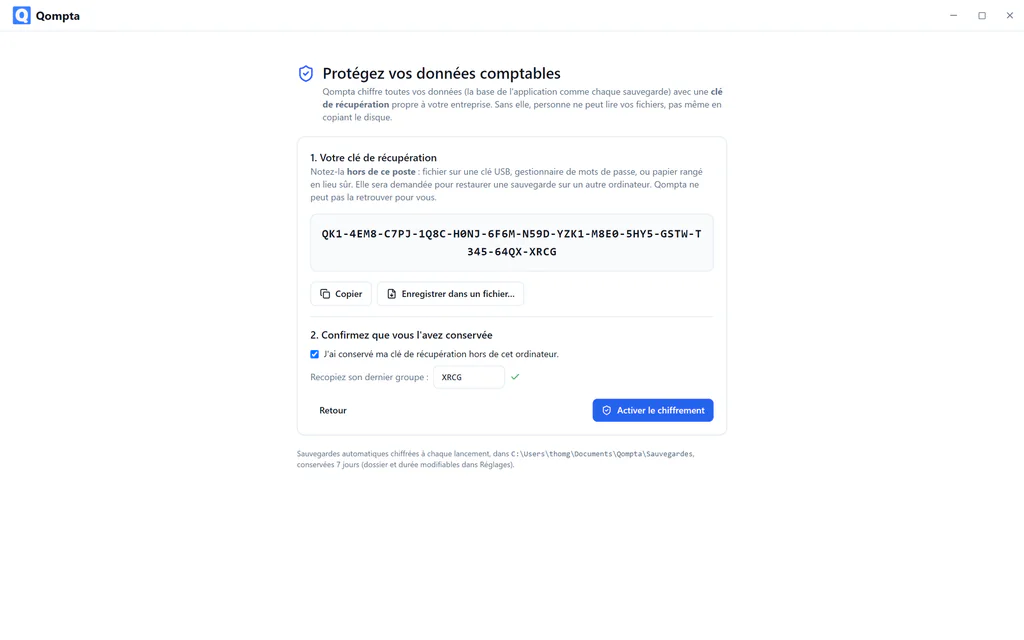
Tick the box, then type in the last group of the key (J450 in the example above). This step is there on purpose: it is the only proof that the key has actually left the screen. The « Activer le chiffrement » (Enable encryption) button stays disabled until then.
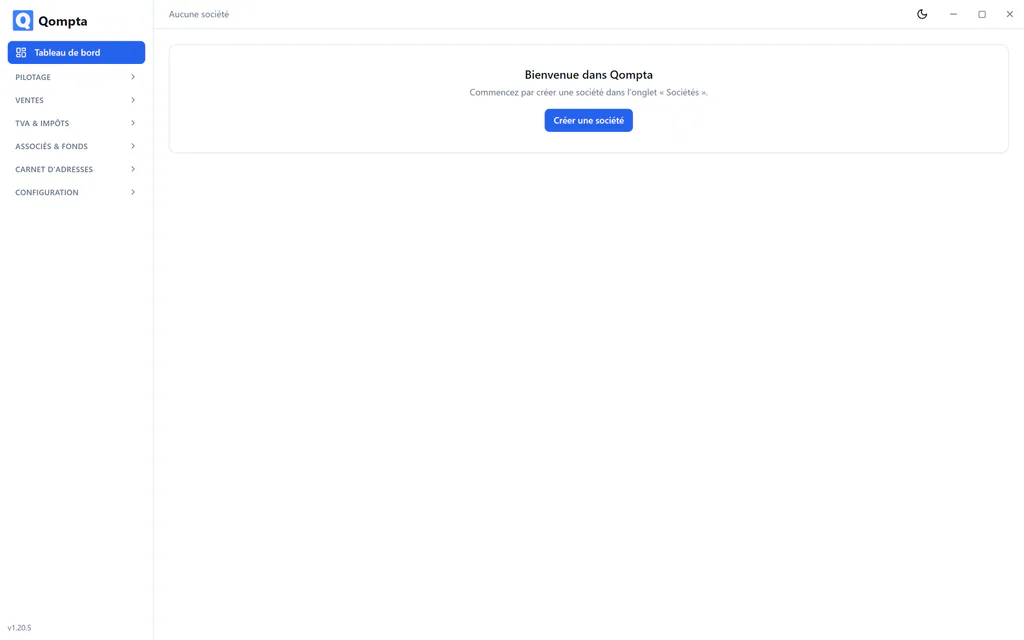
Qompta then restarts into the application, ready to use.
What exactly is encrypted
Everything. The database never touches the disk unencrypted: it is decrypted in memory at startup; only a file sealed with AES-256-GCM is written back. The automatic backups are encrypted with the same key. Copying the disk or the backup folder gives nothing without the key.
5. On a second computer
Install Qompta as usual, then choose « J'ai déjà une clé » (I already have a key) on first launch.
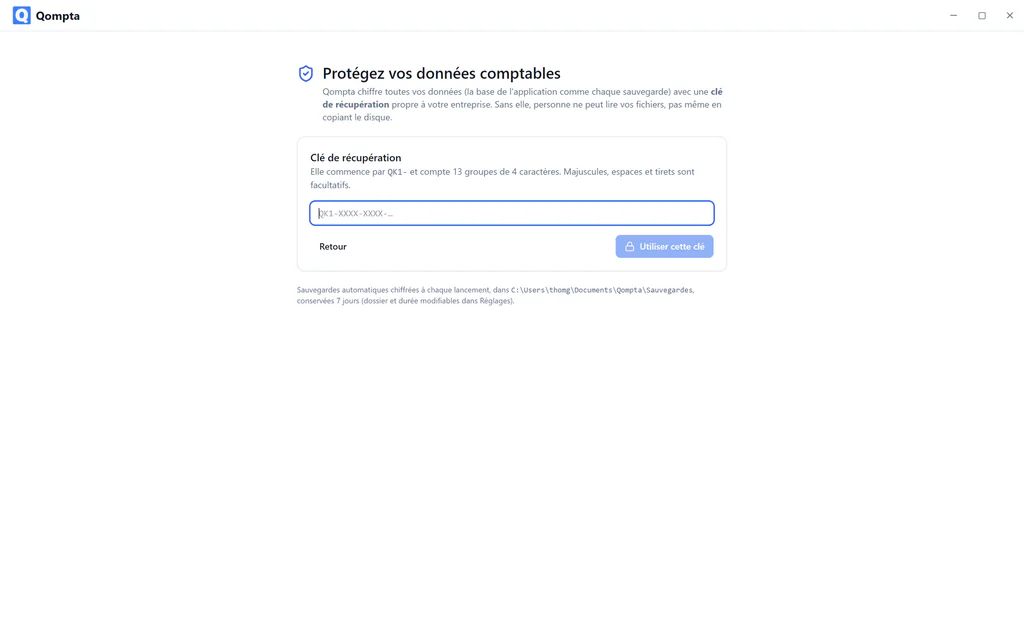
Enter the key you wrote down during the first setup. Hyphens and letter case do not matter. Your backups then open just as they do on the original computer.
6. Backups
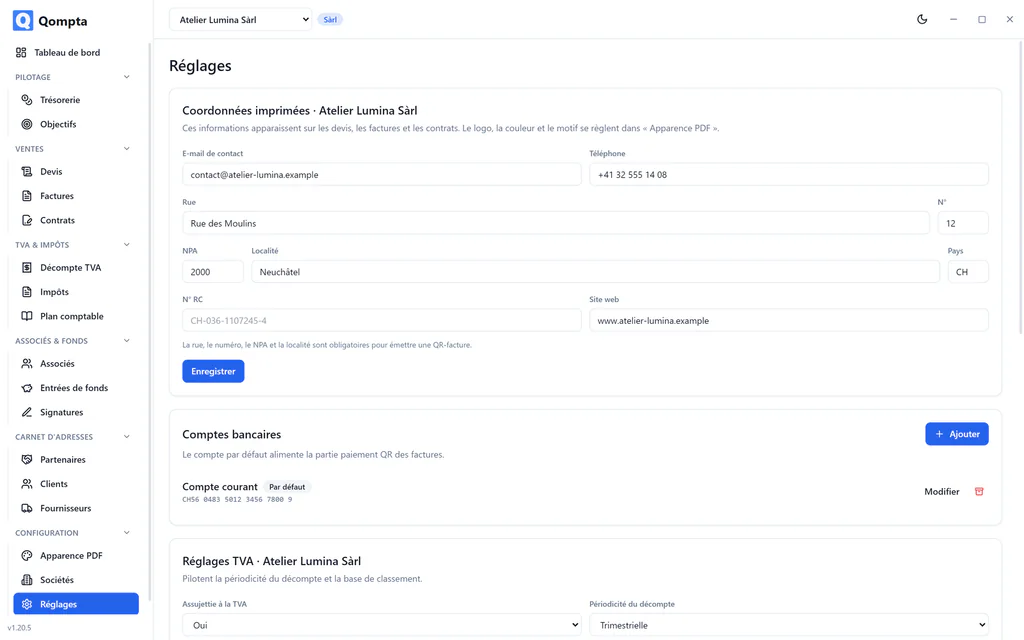
Qompta writes an encrypted backup every time it starts, in Documents\Qompta\Sauvegardes, keeping them for 7 days. The folder and the retention period can be changed in Réglages (Settings).
Because backups are encrypted with your key, a backup on its own is not enough to recover: you need the backup and the recovery key. Keep them in two different places.
To restore: Réglages → Restaurer une sauvegarde (Settings → Restore a backup). Restoring replaces the current data, so Qompta sets the old database aside instead of deleting it.
If you ever need to read a backup outside the application, the scripts/decrypt-backup.mjs script in the repository does it with Node and your key, nothing else.
7. Updating
Install the new version over the old one: same installer, same steps. Your data, your key and your backups are not touched: they live outside the program folder.
Database migrations apply themselves at startup and are tested to keep every existing row.
8. Uninstalling
- Windows: Paramètres → Applications → Qompta → Désinstaller (Settings → Apps → Qompta → Uninstall).
- Debian/Ubuntu:
sudo apt remove qompta.
Neither one deletes your data. To remove it as well, delete the data folder listed above and your backup folder, making sure you no longer need them, because without these files the recovery key alone restores nothing.
9. Troubleshooting
The application no longer starts after an update (Windows). Almost always the native database module left in the wrong variant. Reinstall the published package rather than a version built by hand.
« Clé de récupération invalide » (Invalid recovery key) when entering it. The groups are read without their hyphens and regardless of case, but a wrong character is still a wrong character. Check 0/O and 1/I: the alphabet used (Crockford base32) deliberately excludes ambiguous characters, so a typing error really is one.
Linux: the window stays black or does not open. Missing system libraries: see the command in section 3. Under WSLg, the same fix applies.
I have lost my recovery key. There is no solution. That is the price of encryption: if a back door existed, it would exist for someone else too. As long as the application still opens on this computer, the key is still in the system vault: make a backup immediately and, above all, write the key down.