
Qompta user guide
The Qompta interface is in French. On-screen labels are therefore quoted in French, with an English translation in brackets the first time they appear.
On this page
- 1. Creating a company
- 2. The address book
- 3. The chart of accounts
- 4. Quotes
- 5. Contracts
- 6. Invoices
- 7. The VAT return
- 8. The tax file
- 9. Treasury
- 10. Associates and capital contributions
- 11. Signatures
- 12. Dashboards
- 13. Objectives
- 14. Document appearance
- 15. Several companies
- 16. Settings and backups
- 17. Nothing is irreversible
This guide walks through the application in the order you actually encounter it: creating a company, keeping your address book, selling, buying, filing VAT, tracking cash flow.
The screenshots use a fictitious company, Atelier Lumina Sàrl, a lighting workshop in Neuchâtel.
To install the application and understand the recovery key, see the installation guide.
1. Creating a company
When you first open it, the application is empty and invites you to create a company. You will always find it under Configuration → Sociétés (Configuration → Companies).
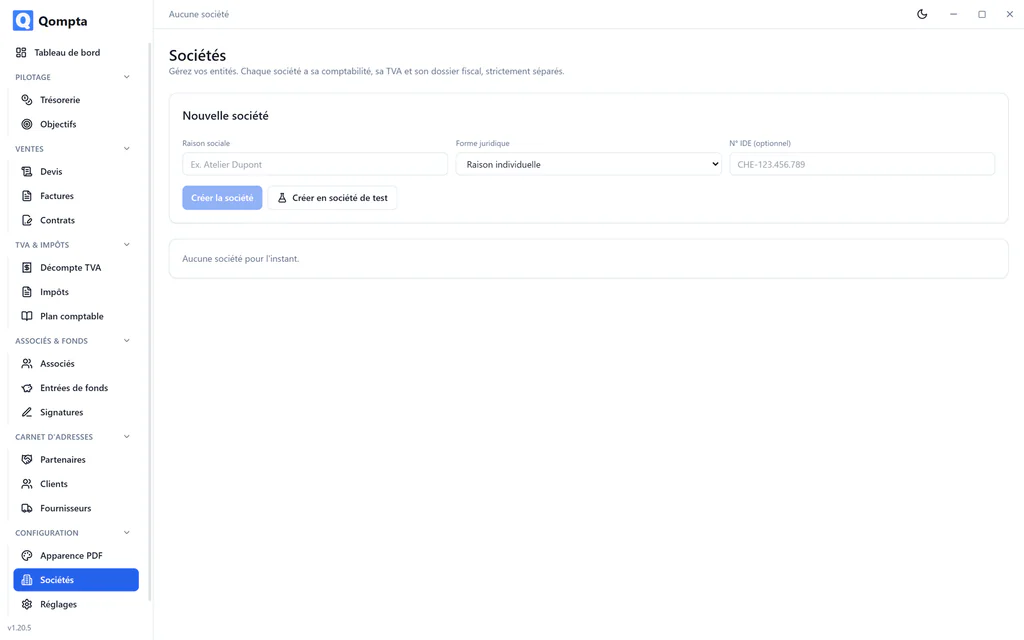
Click « Nouvelle société » (New company). The form opens directly in the page.
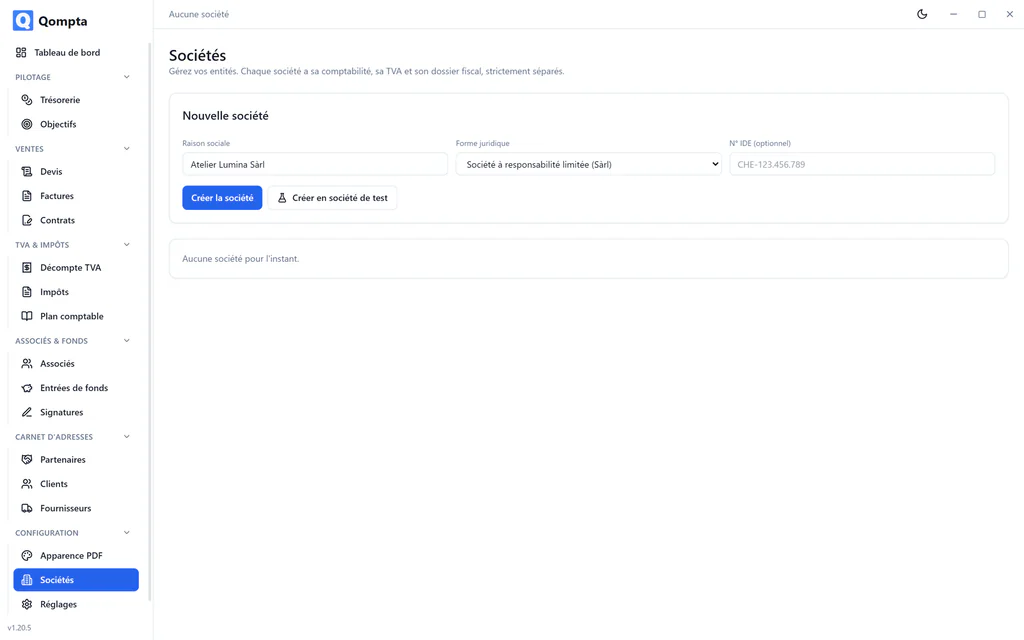
The legal form drives everything else
It is the only truly structural choice: it determines the accounting and the taxation applied from then on.
| Legal form | Accounting | Taxation |
|---|---|---|
| Raison individuelle (sole proprietorship) | single-entry | on the owner's income |
| Société simple (simple partnership), SNC (general partnership) | single-entry | on each partner's share |
| Sàrl (LLC), SA (Ltd) | double-entry | on profit and capital |
| Association | single-entry | on profit only, no capital |
The other fields (UID, VAT number, address, contact) are used on business documents. Fill them in carefully: they are printed on your quotes and invoices. The address is essential for the QR-bill.
The « Créer en société de test » (Create as test company) button creates the same thing with a name prefixed TEST_. A test company can be deleted permanently, unlike a real company, which can only be archived. That is where you should try things out.
Changing the legal form later
A sole proprietorship that becomes a Sàrl, for example. Qompta then switches the accounting to double-entry and adds the missing capital accounts to the chart of accounts while keeping the history of what the company was before.
VAT settings
Under TVA & impôts → Décompte TVA (VAT & taxes → VAT return), state whether the company is registered for VAT, which method it uses (effective or net tax rate) and which period applies (quarterly, half-yearly, annual). This choice drives the invoice filters and the return itself.
2. The address book
It is split into Clients (Clients), Fournisseurs (Suppliers) and Partenaires (Partners).
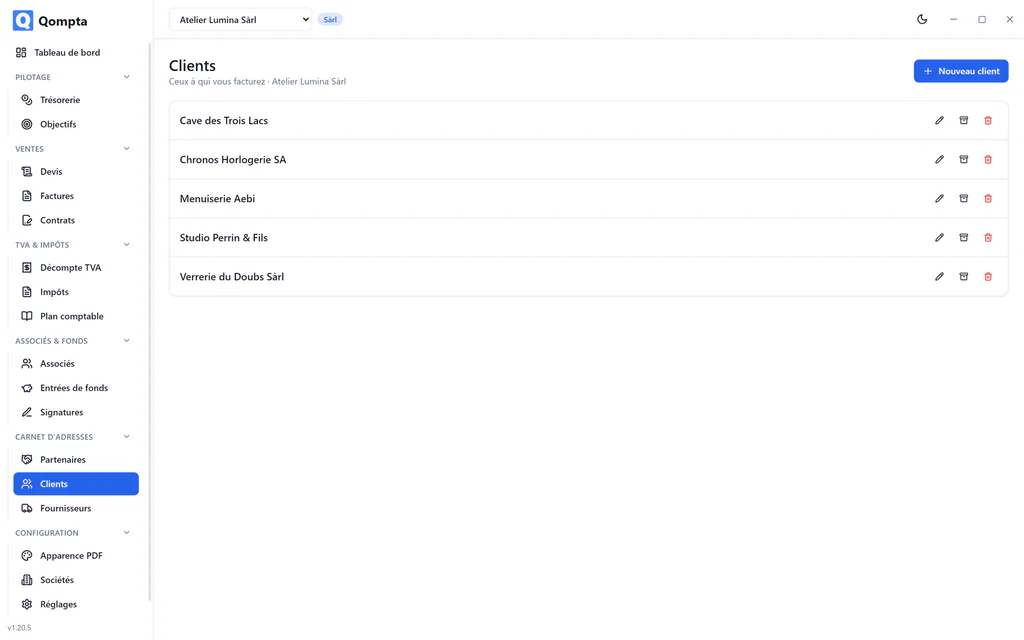
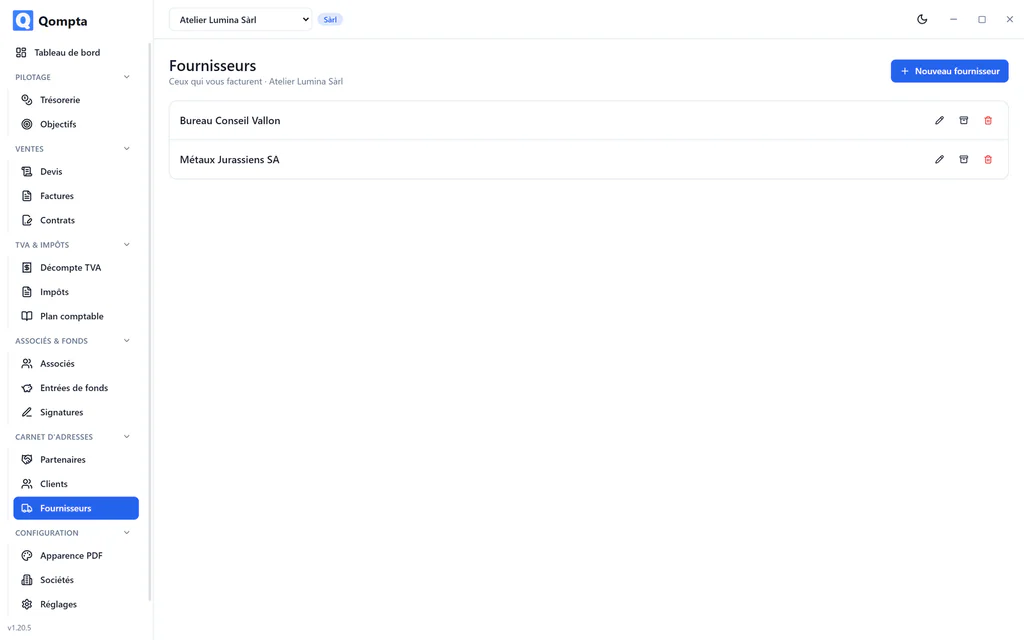
The « Nouveau » (New) button opens the record.
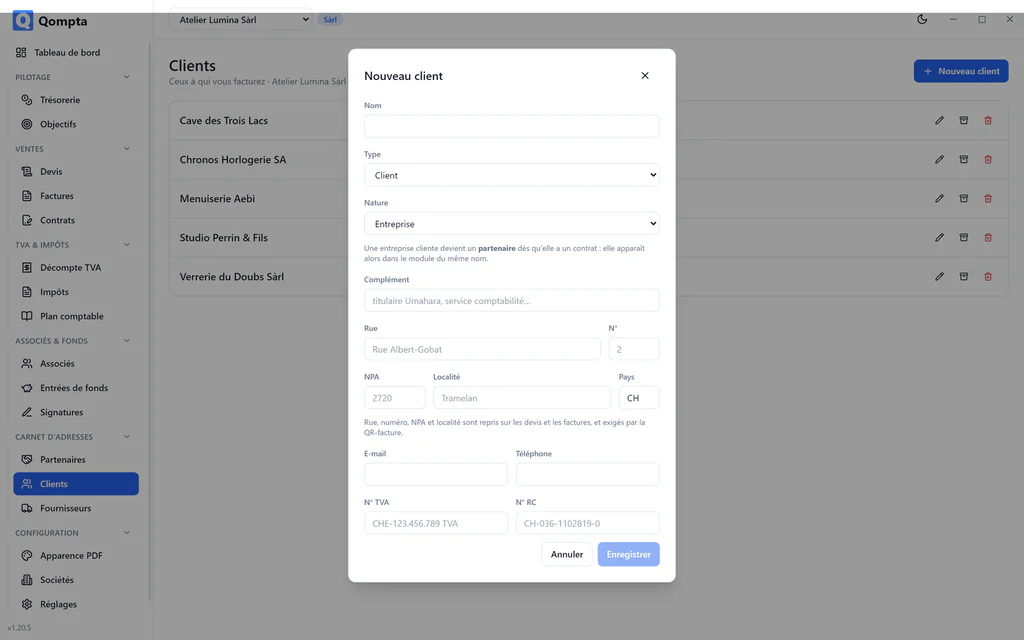
A contact can be a client, a supplier or both. Also distinguish a company from an individual: this changes the way the address is printed.
Fill in the full address for everyone you invoice. The Swiss QR-bill is only valid with a complete address: street, number, postcode, town, country.
Partners are deduced
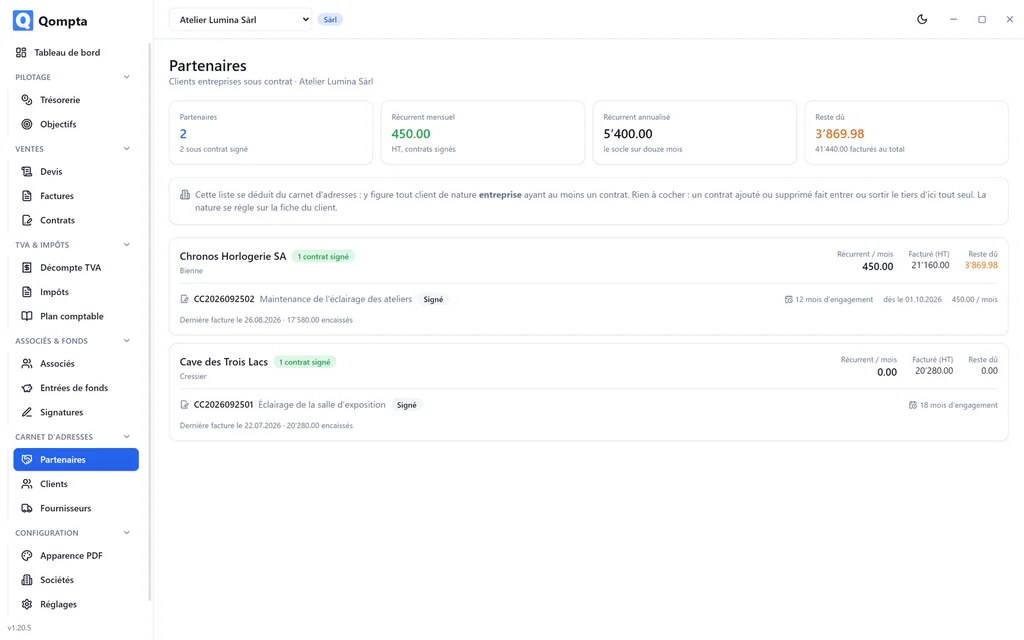
There is no "partner" checkbox. Any client of the company type that has at least one contract is a partner. Sign a contract and it appears; delete the contract and it drops out. An archived contact stays there: archiving does not cancel a commitment.
Deleting a contact
A contact with no linked document can be deleted permanently. As soon as it carries an invoice or a quote, only archiving is possible: the accounting history comes first.
3. The chart of accounts
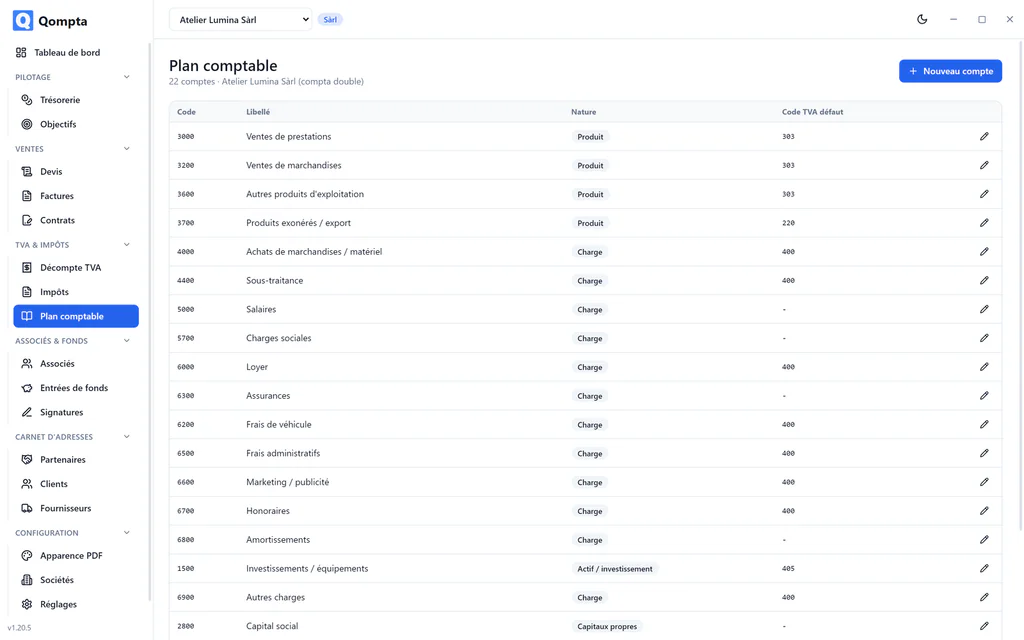
Each company receives a chart of accounts suited to its legal form. It is used to categorise invoices and feeds the tax file.
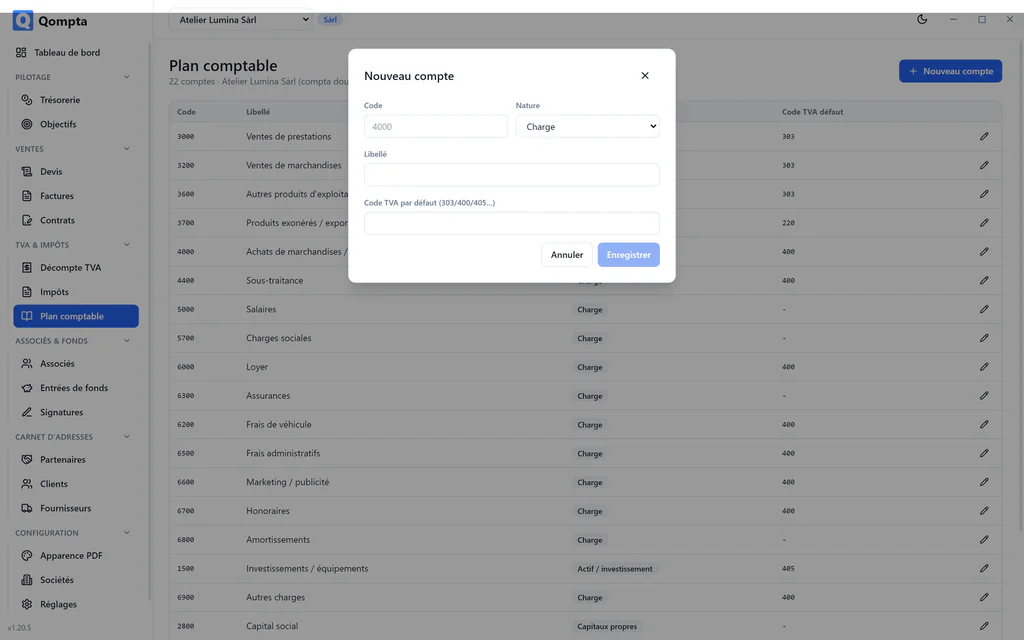
An account has a code, a label, a type (income, expense, asset, liability, equity) and optionally a default VAT code, which will be suggested automatically on invoices in that category. The « investissement » (investment) checkbox books the expense under code 405 of the return rather than 400.
4. Quotes
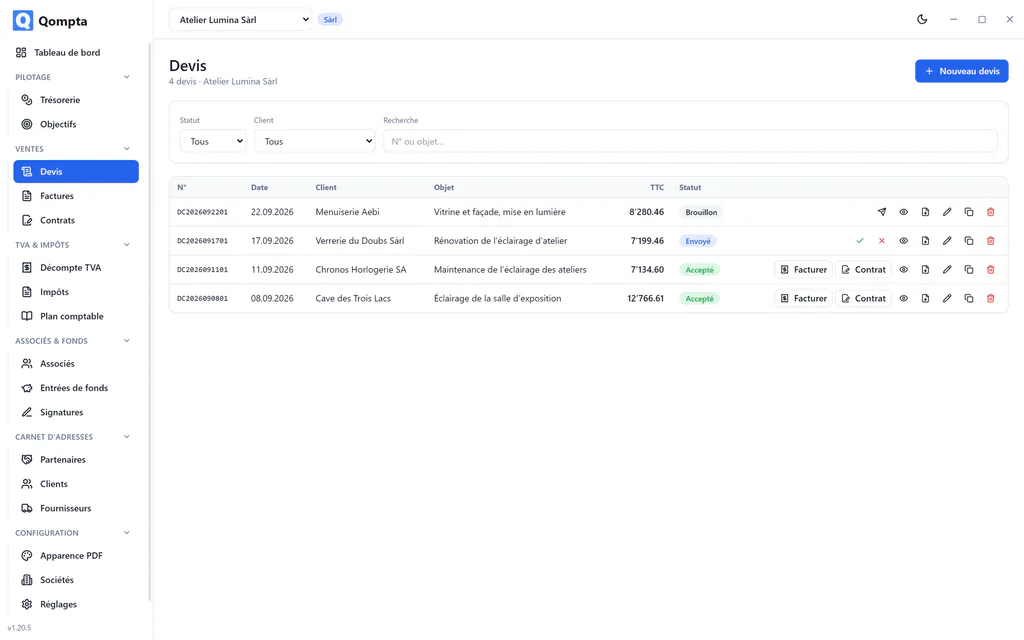
A quote is a commercial document: it never affects the VAT return. It is numbered DC followed by the date and a counter reset every day.
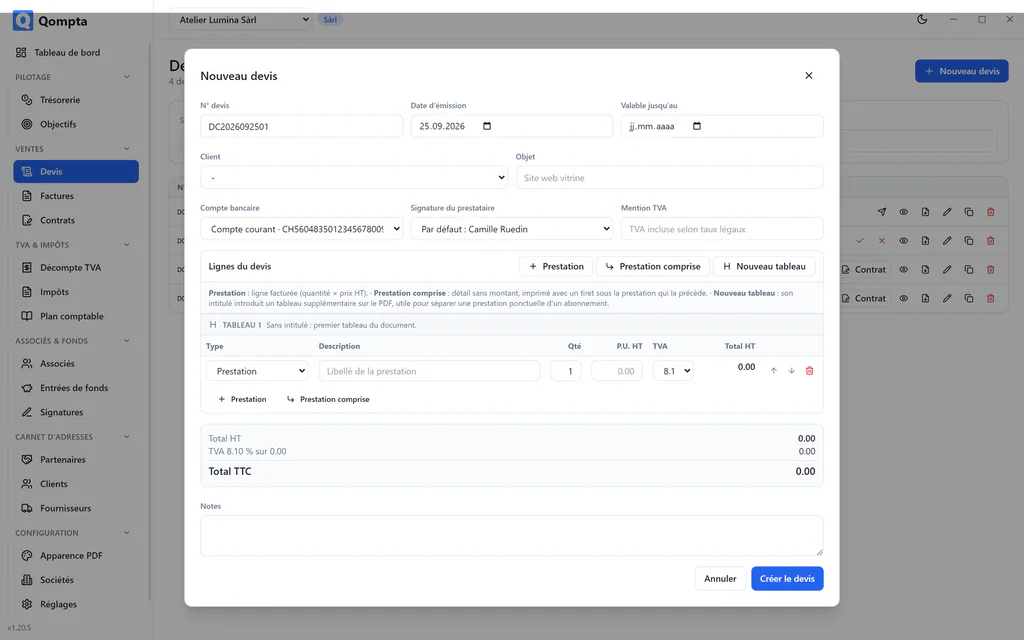
The three kinds of lines
| Kind | Effect |
|---|---|
| Section (Section) | a heading, to structure a long quote |
| Prestation (Service) | a billed line: quantity × price excl. VAT |
| Prestation comprise (Included service) | a detail printed with a dash, no amount |
This lets you detail an offer without inflating the total: « Installation complète » (complete installation) billed, then beneath it three lines stating what "complete" covers.
The cycle
- Brouillon (Draft): you are writing it.
- Envoyé (Sent): the quote has gone to the client.
- Accepté (Accepted): the client said yes.
- Facturé (Invoiced): an accepted quote is turned into an invoice.
A refusé (rejected) quote that is then reworked is linked to its replacement: it then leaves the dashboard's lost deals instead of counting twice.
Conversion into an invoice
Conversion produces a sales invoice as a draft, with one invoice per VAT rate if the quote mixes several. This split is not a whim: an invoice can only carry one rate, otherwise the 303/313/343 breakdown of the return would be wrong.
An invoiced quote can no longer be edited or deleted as long as its invoice exists. Delete that invoice and the quote goes back to accepté: editable and convertible again.
5. Contracts
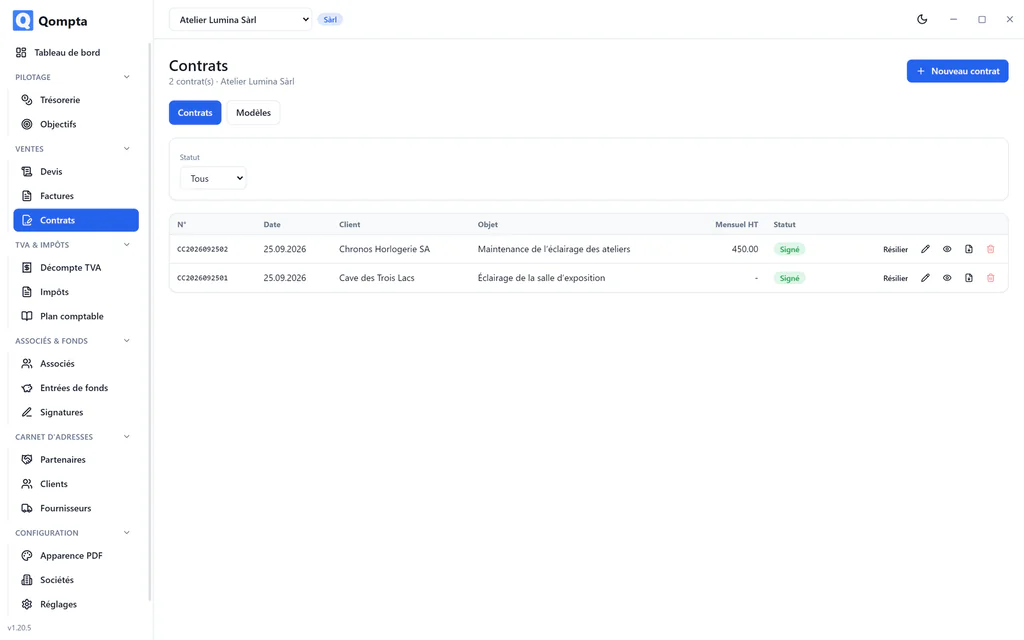
A contract is built in sections: ten block types and eight starting structures (service contract, subscription, mandate, fixed-price works contract, NDA…).
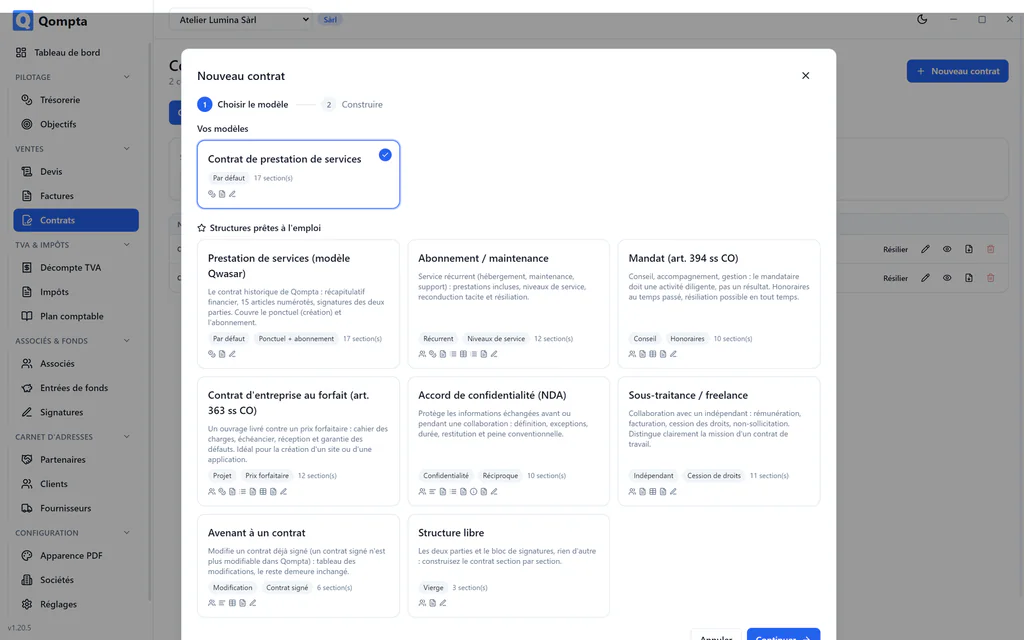
While you type, the {{variables}} stay visible. They are frozen on save: so choose the template before entering the amounts.
A contract covers the whole quote: the one-off amount as well as the recurring one. Only signed contracts count towards recurring revenue, but all of them remain displayed: the history matters.
6. Invoices
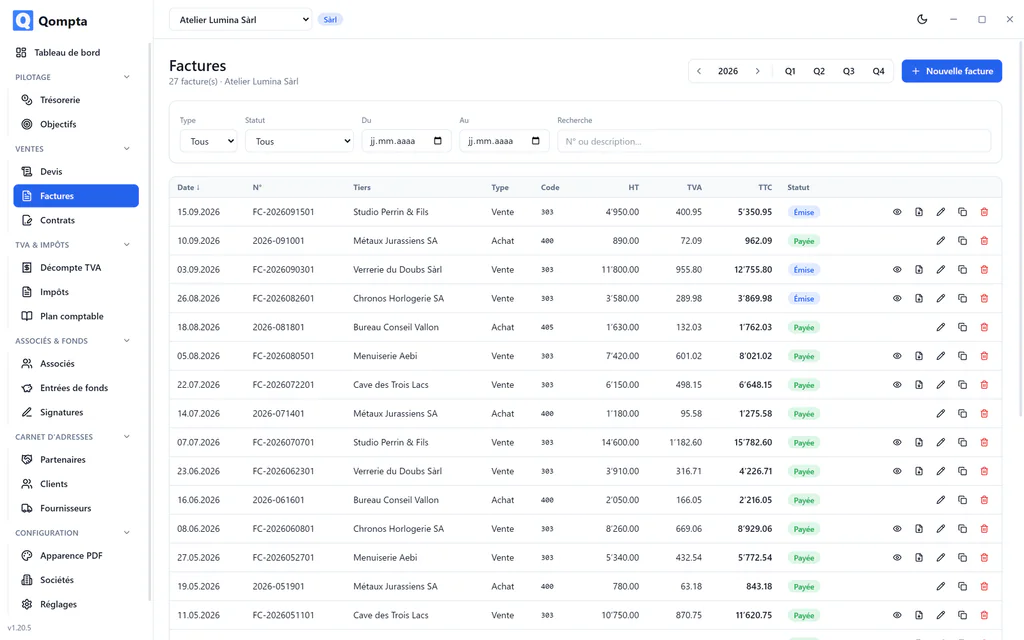
Sales and purchases live in the same list, most recent first.
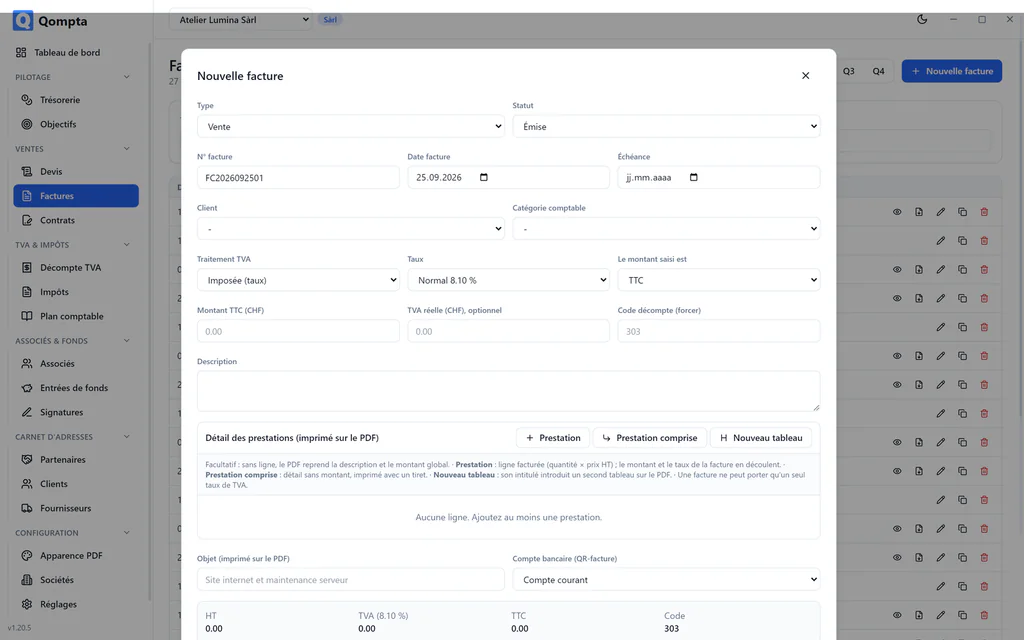
The status decides everything
| Status | Included in the VAT return | Counts in treasury |
|---|---|---|
| Brouillon | no | no |
| Émise (Issued) | yes | no |
| Payée (Paid) | yes | yes |
| En retard (Overdue) | yes | no |
| Réglé (pour TVA) (settled for VAT) | yes | no |
Only a draft stays out of the return: VAT is due on issue, not on payment.
The last status is the special case. It covers an invoice settled by a third party (typically another of your companies) but recorded here to recover the VAT. It enters the return and stays out of treasury, since no money has come into this particular company. It is only offered to companies registered for VAT.
Filters by VAT period
The buttons next to the year follow the company's reporting frequency: T1…T4 for quarterly, S1/S2 for half-yearly, « Année » (Year) for annual. They combine and are added to the filters below instead of replacing them. The year arrows filter on that year when no quarter is selected.
Service details
An invoice can carry lines just like a quote. Its amount and rate then derive from those lines. It accepts only one VAT rate, for the same reason that a quote is split on conversion. Without lines, it remains an entry for a single overall amount.
Actual VAT
The « TVA réelle » (actual VAT) field lets you enter the exact amount shown on a supplier invoice when it differs from the theoretical calculation: an old 7.7 % rate, a different rounding. The return then uses that amount rather than its own.
7. The VAT return
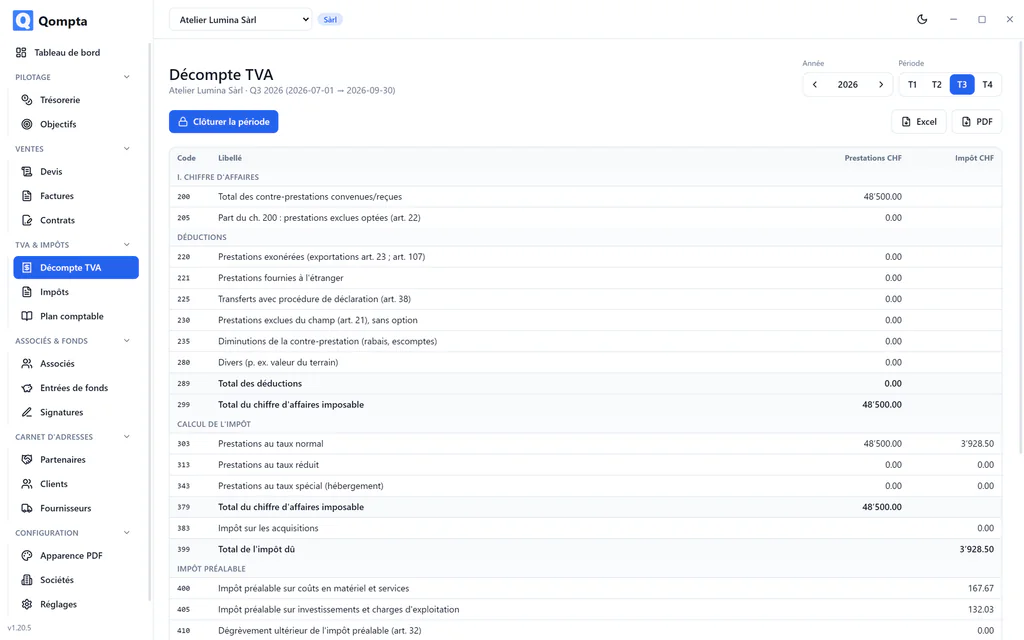
The screen reproduces the official form of the Swiss Federal Tax Administration (FTA, French AFC) and pre-fills it from your invoices, with the real codes: turnover in 200, deductions in 220 to 280, tax calculated in 303/313/343, input tax in 400 to 420.
Choose the year and the period. The figures are recalculated live: nothing is stored, so a corrected invoice is reflected immediately.
Closing
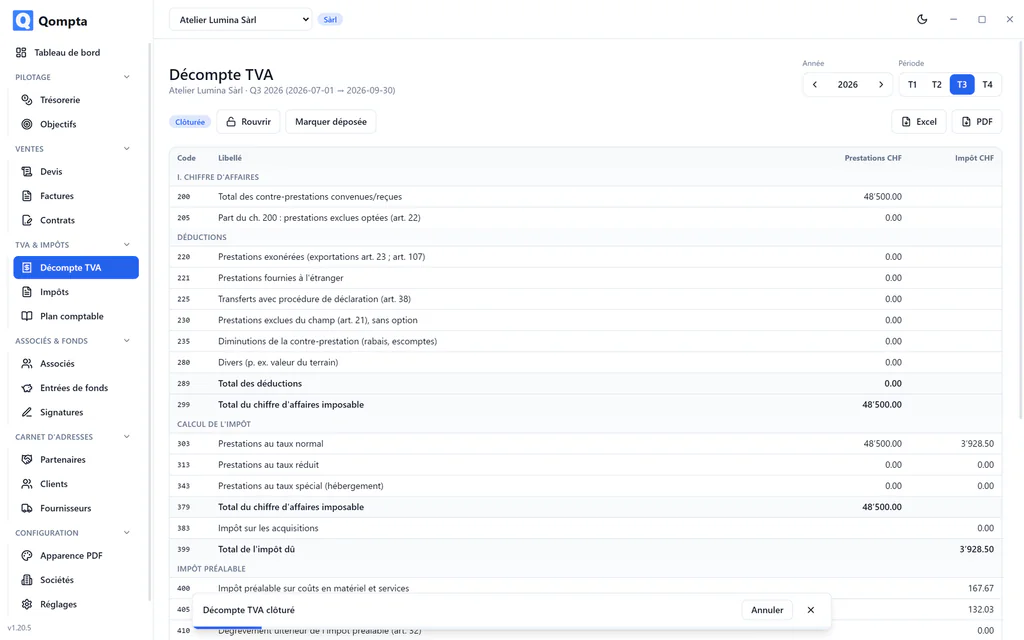
« Clôturer la période » (Close the period) archives the return as filed and locks the period. Before that, export it as PDF or Excel to copy the amounts into the FTA portal.
Once the return has been paid, record the payment: the amount then leaves treasury. A VAT return is the only thing that moves money without being either a sale or a purchase.
8. The tax file
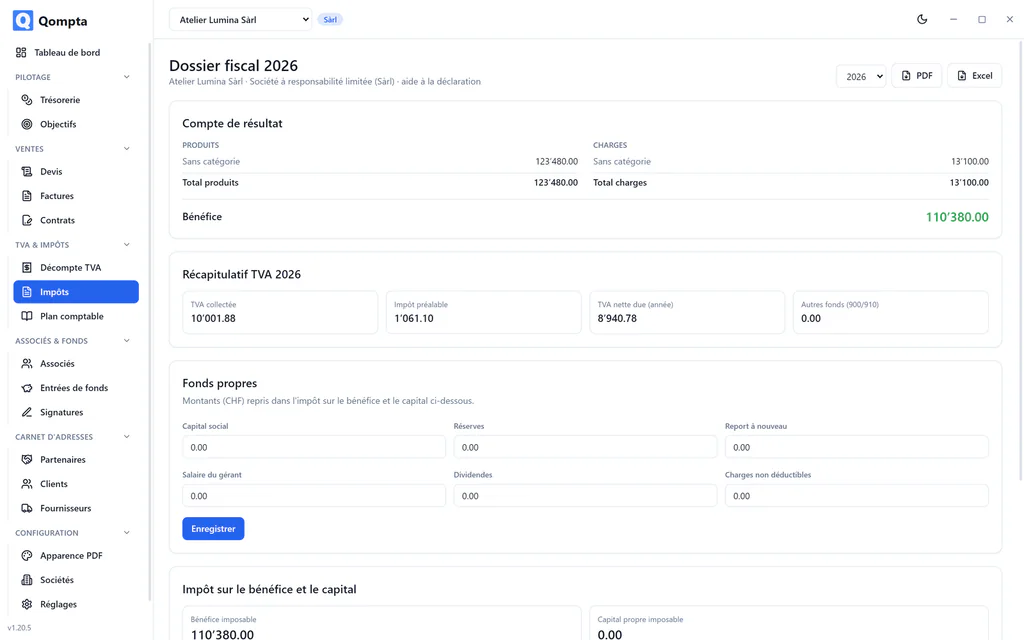
The Impôts (Taxes) screen gathers what you need for the tax return, adapted to the legal form: taxable profit, plus capital for a Sàrl or an SA.
For these two forms, equity is entered here and feeds the calculation of profit tax and capital tax.
9. Treasury
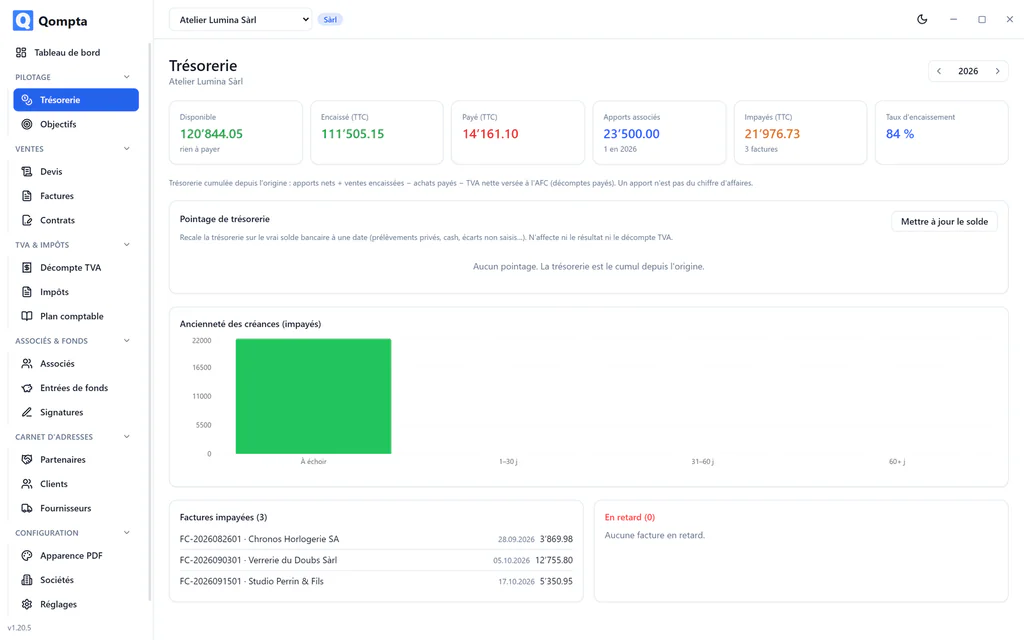
Treasury is cumulative from the start: net contributions, plus sales actually collected, minus purchases actually paid, minus net VAT paid to the FTA. Last year's contribution still pays this year's invoices. That is why nothing is reset at the change of financial year.
The screen also shows receivables ageing: what is not yet due, then what has been outstanding for 30, 60 or more than 60 days.
Realigning with the real bank balance
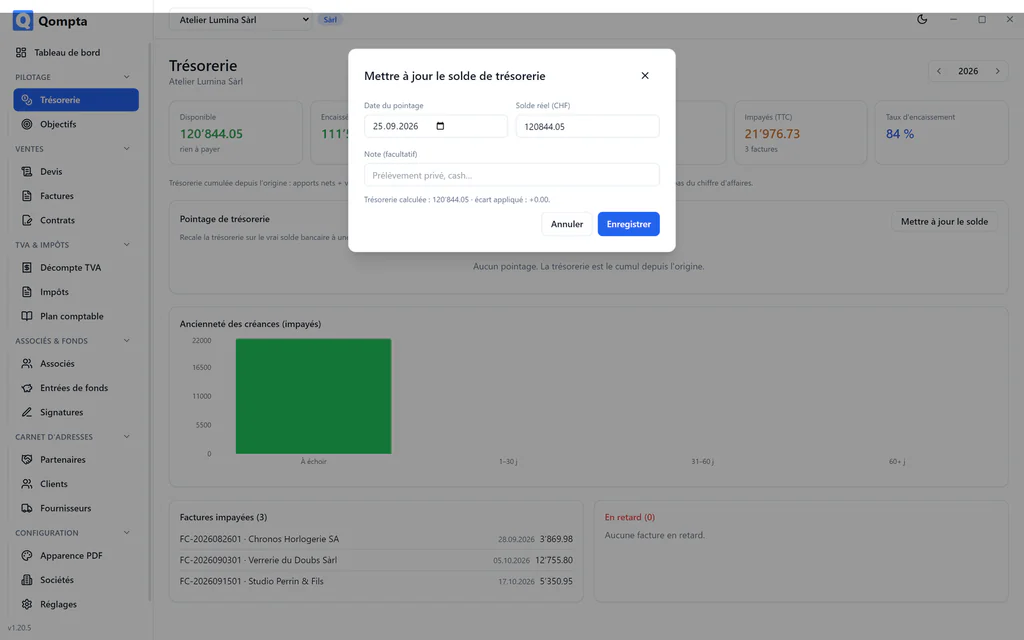
Reality drifts: private withdrawals, cash, differences never entered. « Mettre à jour le solde » (Update the balance) records the bank balance actually observed on a date. From then on, treasury shows that balance, plus whatever happened strictly afterwards.
An entry dated before the reconciliation therefore no longer moves current treasury. It stays in the lists, the reports and the VAT return: reconciliation affects neither the result nor VAT.
10. Associates and capital contributions
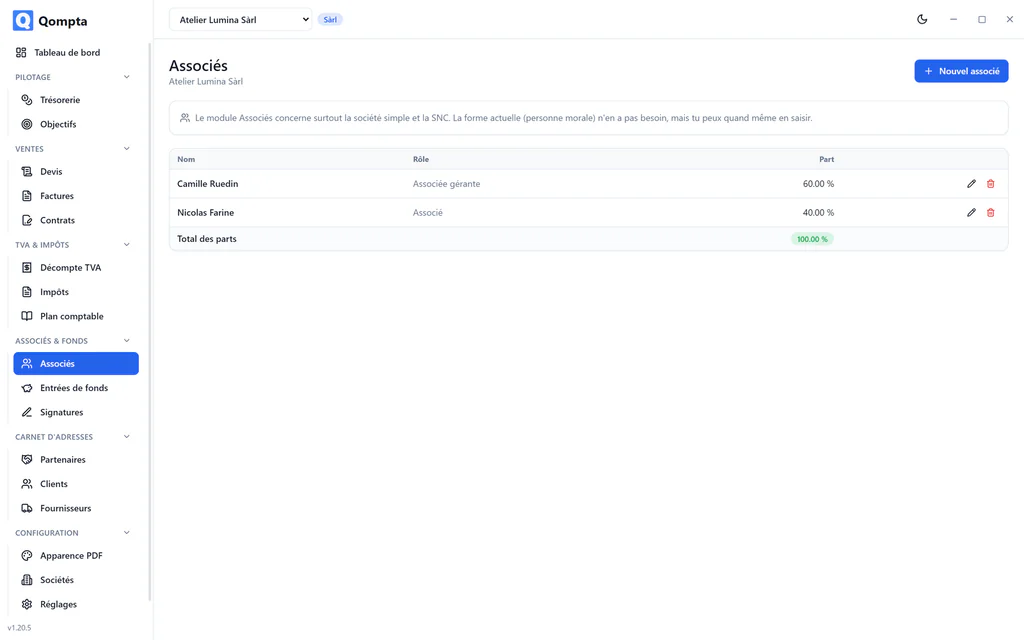
Associates have a name, a share as a percentage and a role. The share is used to allocate profit in the legal forms taxed at associate level.
Capital contributions
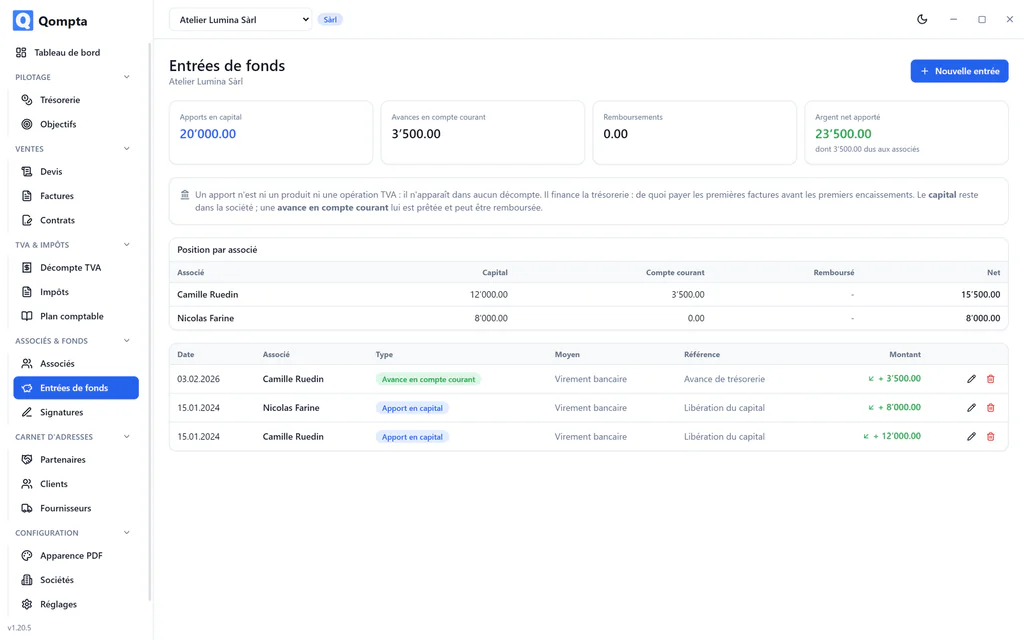
This is the money an associate pays into the company. A separate table, on purpose: a contribution is neither income nor a VAT transaction: no return calculation reads it.
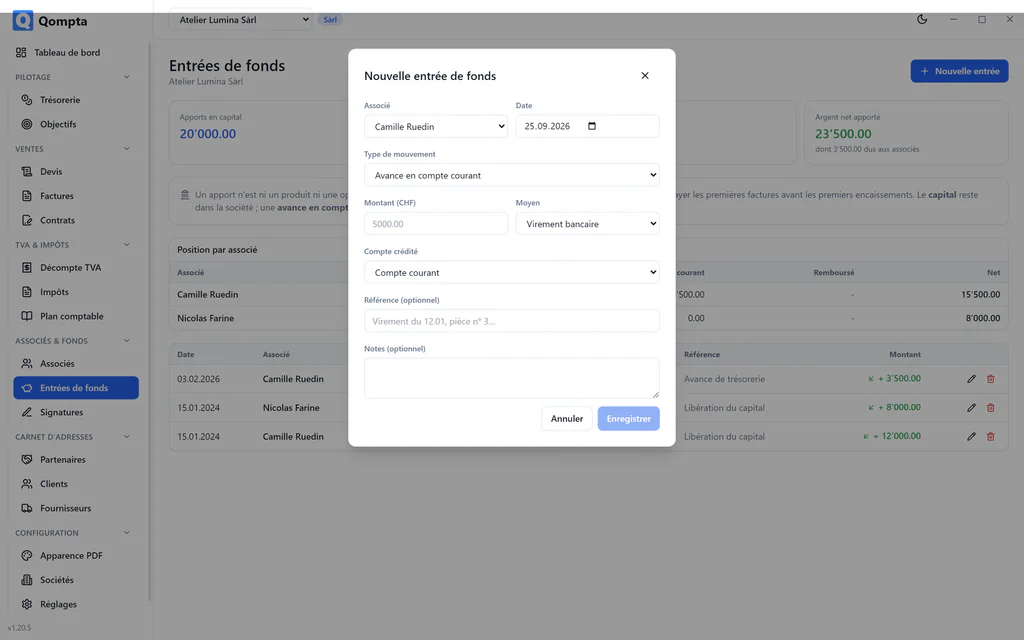
Three types:
| Type | Meaning |
|---|---|
| Capital (Capital) | equity, permanently in the company |
| Compte courant (Current account) | repayable advance, a debt owed to the associate |
| Remboursement (Repayment) | the money goes back out |
The amount is always positive: the type carries the direction.
The associate's name is frozen when entered: removing an associate does not erase the funding history.
11. Signatures
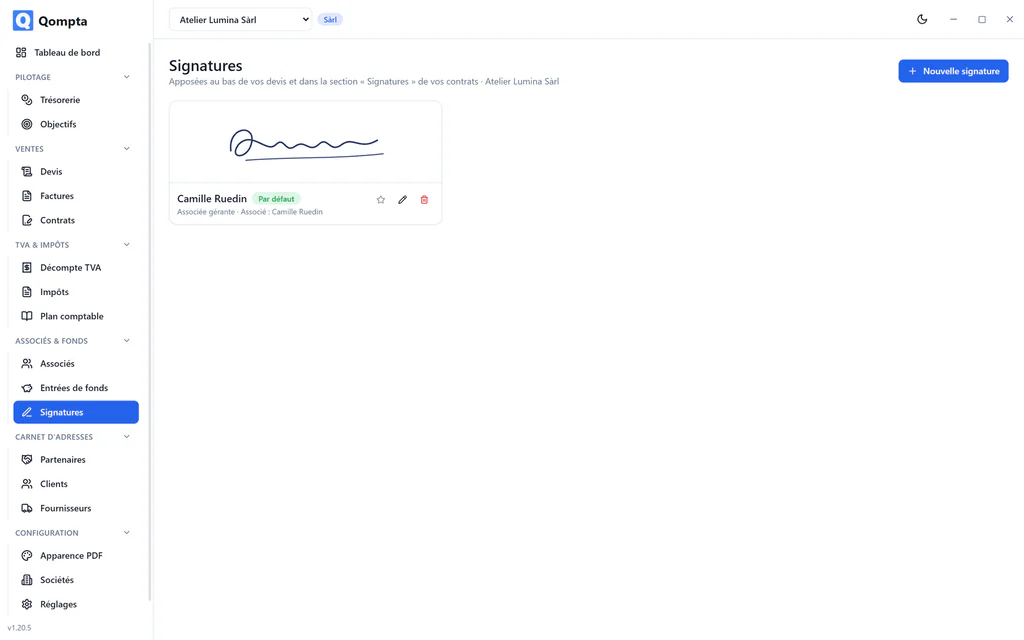
A signature is an image, associated with a name and a job title, reusable on quotes and contracts.
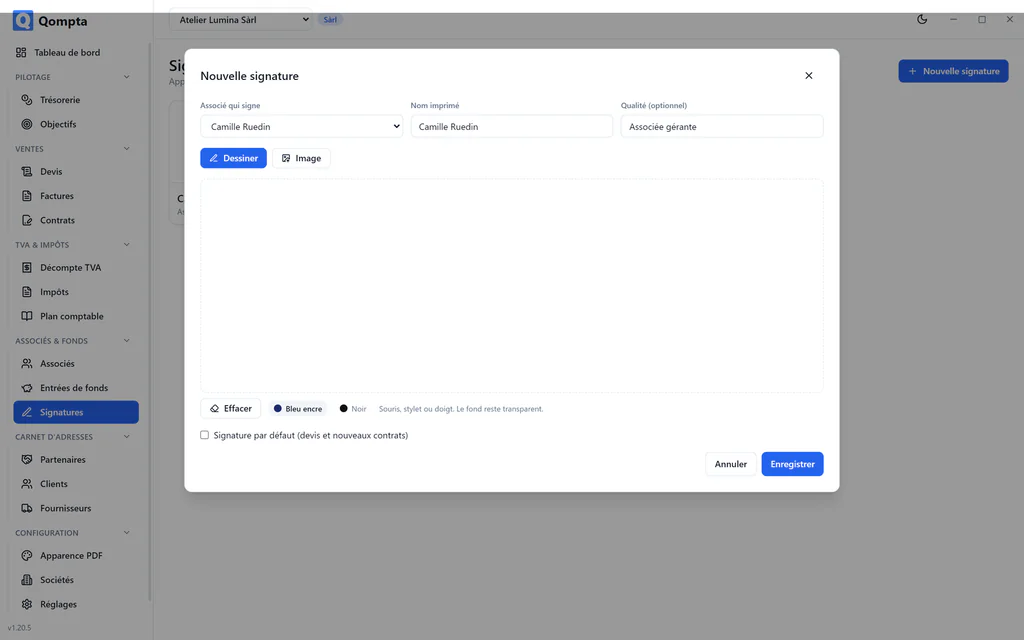
A signature can be marked as default: it is then suggested automatically on new quotes. A quote can also carry none and leave a blank line to be signed by hand.
12. Dashboards
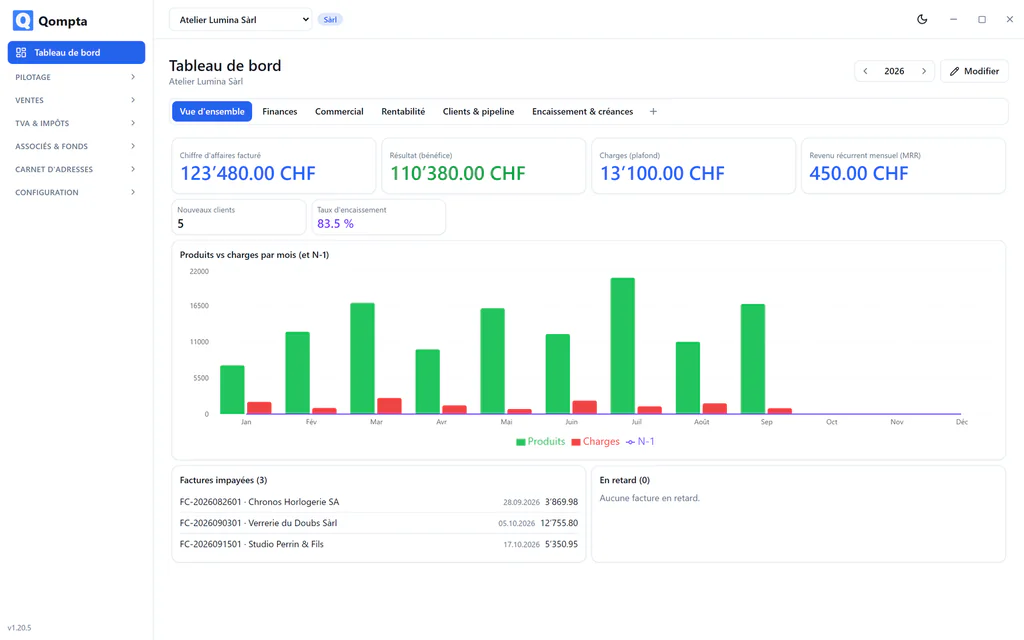
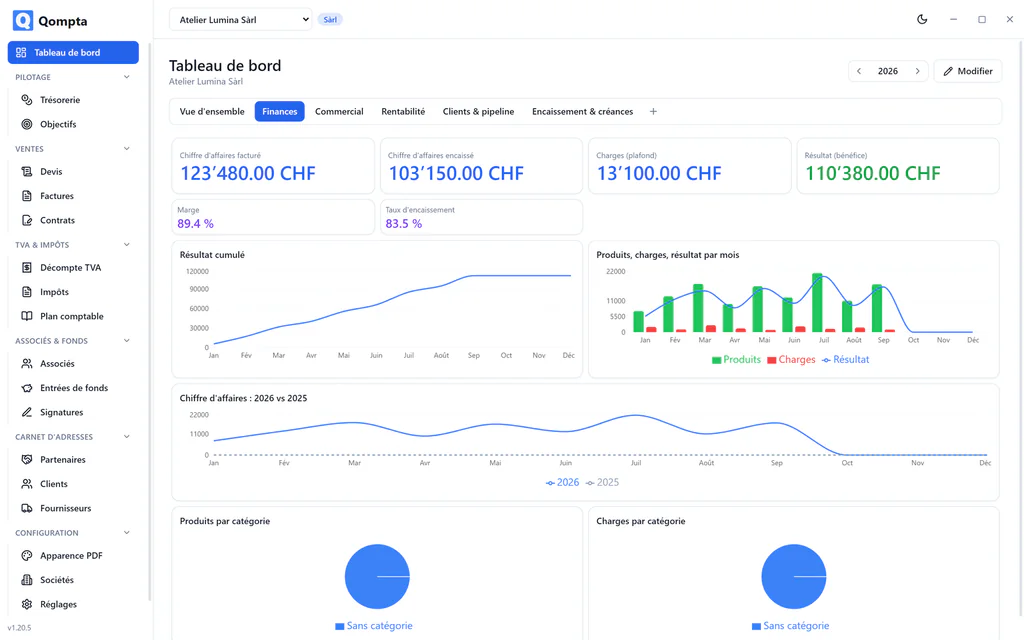
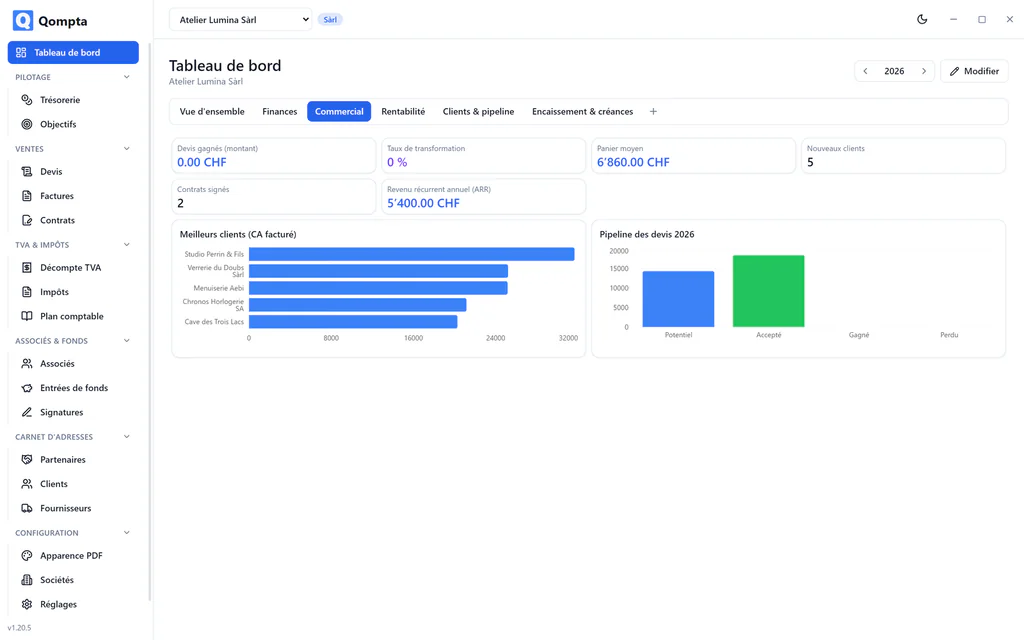
The dashboard is the default screen. Each company can keep several of them, as tabs, created from templates with the + button: vue d'ensemble (overview), finances (finances), commercial (sales), rentabilité (profitability), clients & pipeline (clients & pipeline), encaissement & créances (collections & receivables).
Rearranging
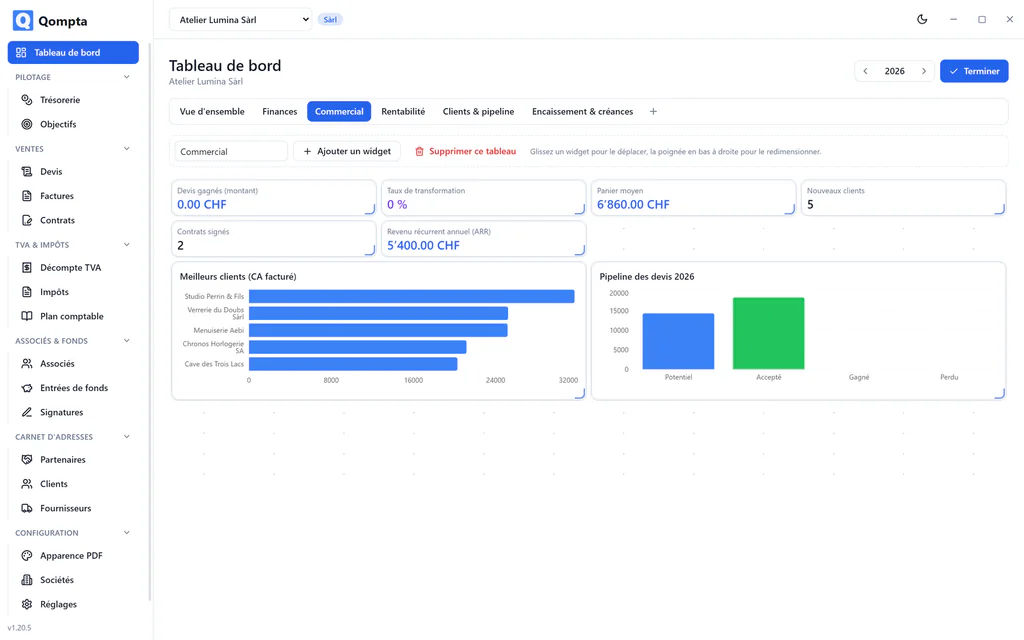
The « Modifier » (Edit) button brings up the grid. Each widget can be moved and resized freely without ever overlapping another: it only goes into free space.
Widgets adapt to the space they are given: a KPI shrunk to the minimum shows only its figure. The text size grows with the cell.
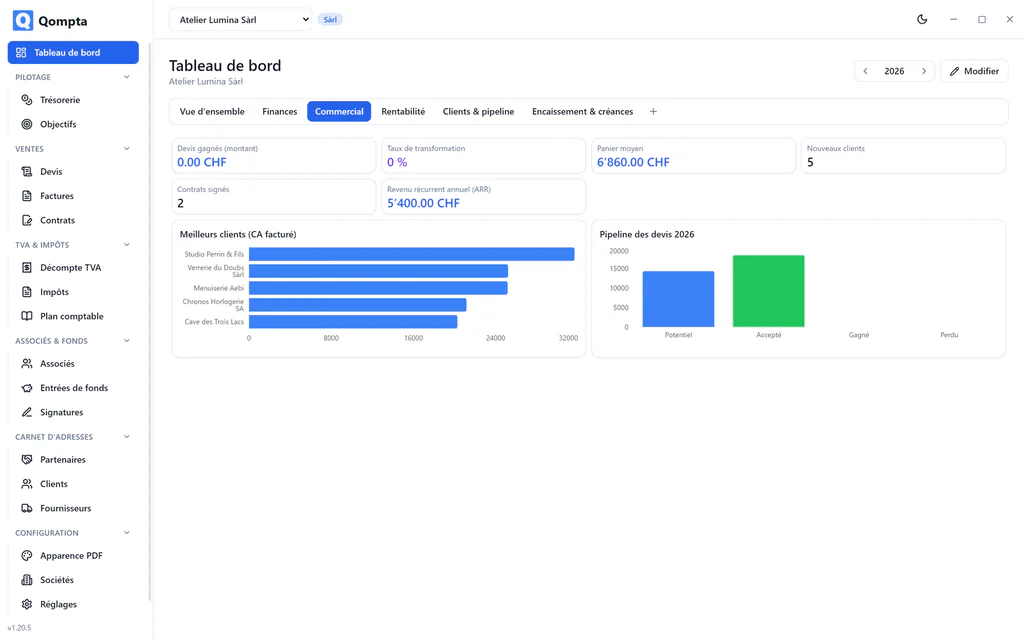
A widget is either a KPI (22 metrics available) or a chart: one from the catalogue or a custom chart for which you choose the type (bar, line, pie), the dimension (month, category, client, stage) and the value.
13. Objectives
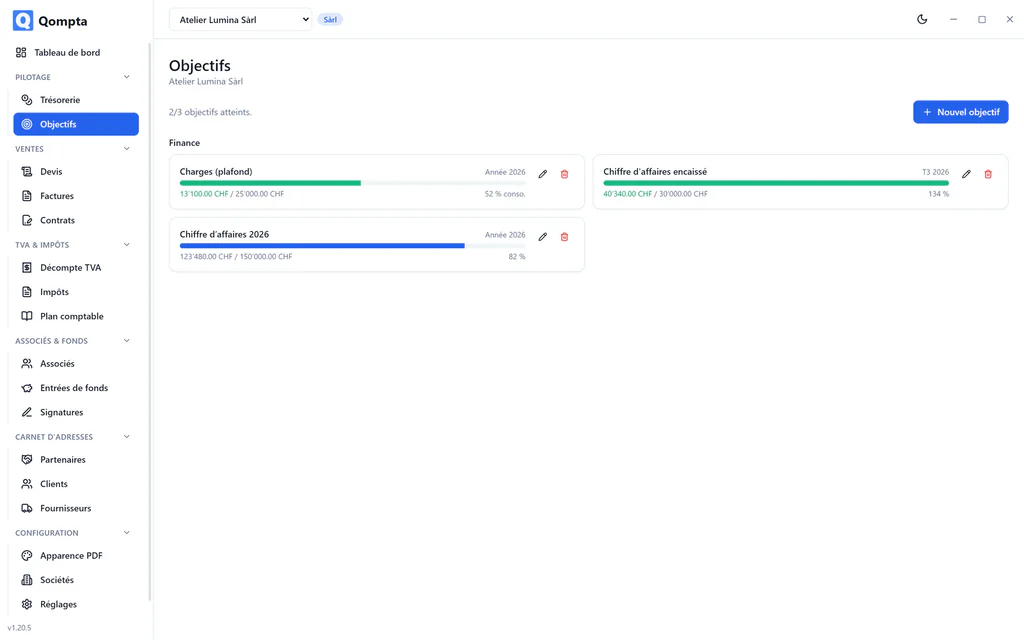
An objective applies to a metric, for a period (year, quarter or month), with a direction: reach at least (a floor: turnover, margin) or stay below (a ceiling: expenses).
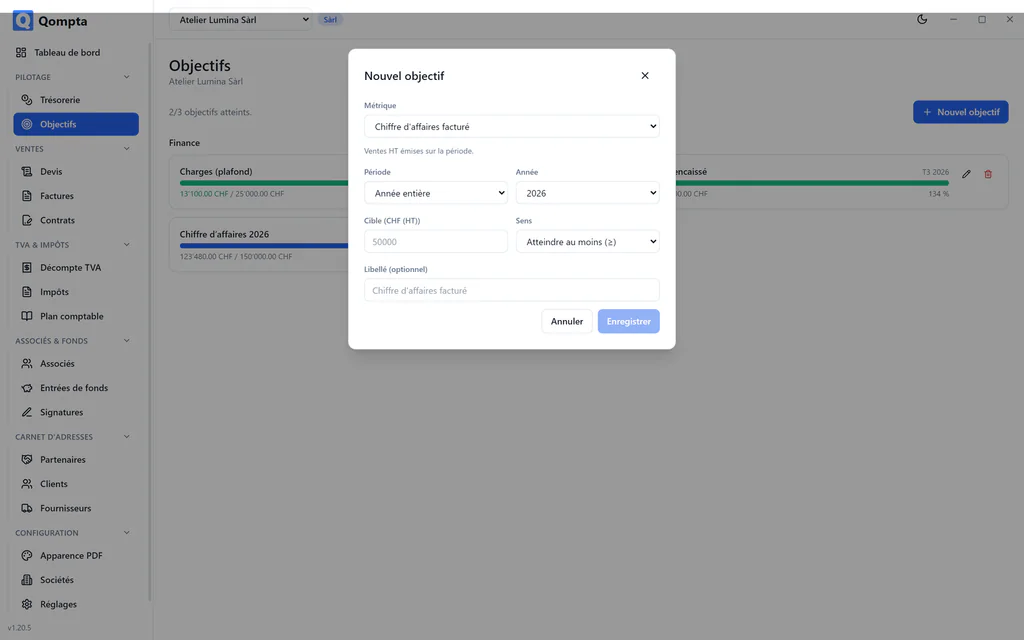
Progress is never stored. It is recalculated from the data each time it is displayed, so an objective cannot drift away from the accounts it measures.
14. Document appearance
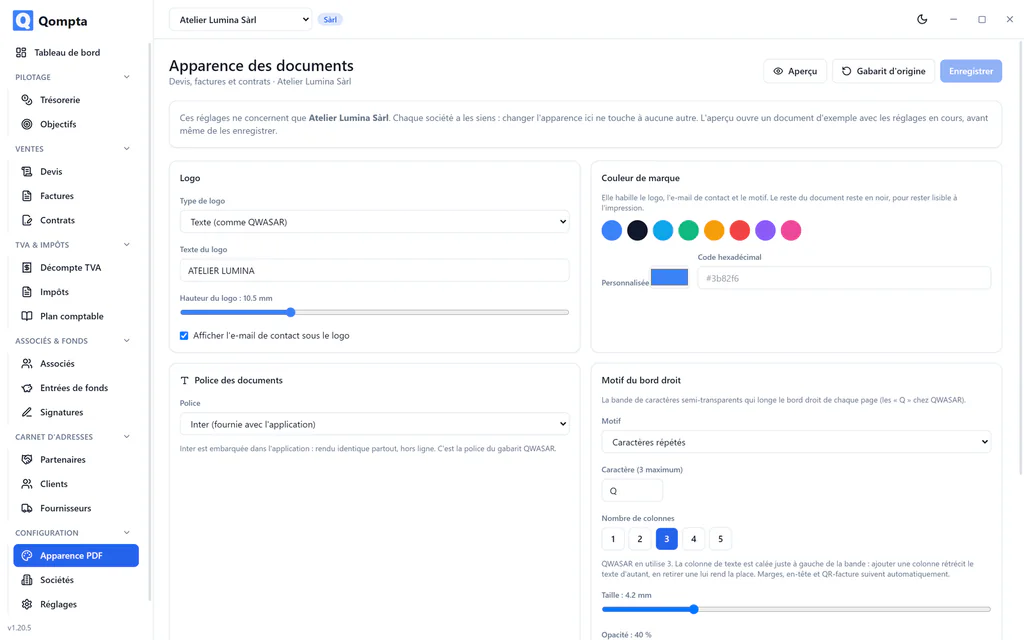
Each company has its own document appearance:
- Logo (Logo): text, an imported image or none, with its height;
- Couleur de marque (Brand colour);
- Motif du bord droit (Right-edge pattern): the character, from 1 to 5 columns, its size, its opacity, even nothing at all. The margins, the header and the QR-bill adjust automatically to the width of the band;
- Ligne de contact (Contact line) and blocs de signature (signature blocks);
- Police (Font): Inter (bundled, the default), a file you import (.ttf, .otf, .woff2, stored in the database, so carried along by backups and printed even offline) or a font installed on the computer.
The default values reproduce the original template exactly: a company that never opens this screen keeps the historical rendering.
The aperçu (preview) renders a sample document with the settings not yet saved: you see the result before confirming.
15. Several companies
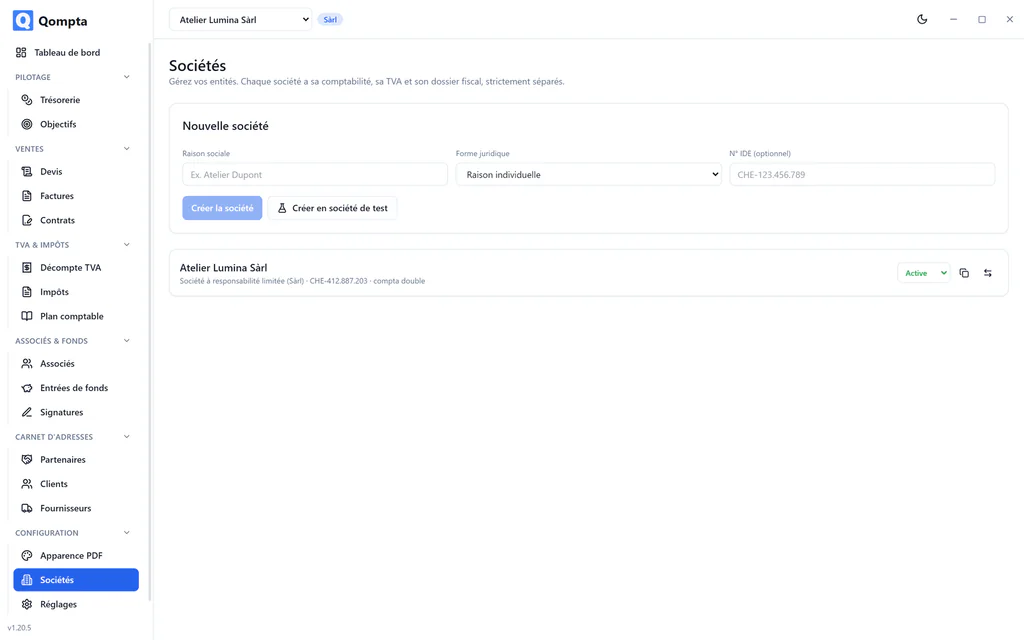
The selector at the top of the window switches from one company to another. Everything you see from then on belongs to the selected company: data is strictly separated. This separation is checked by automated tests, not just by convention.
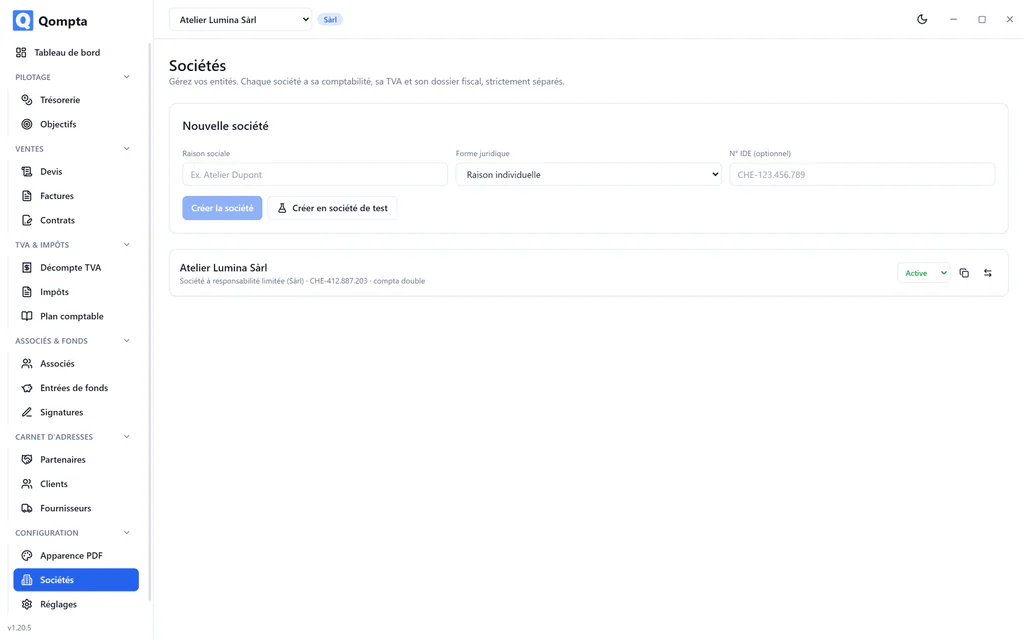
Duplication copies a company's structure (chart of accounts, VAT settings, appearance) without its entries. Handy for setting up a second entity on the same model.
A company can also be made inactive: it disappears from the selector without anything being lost.
16. Settings and backups
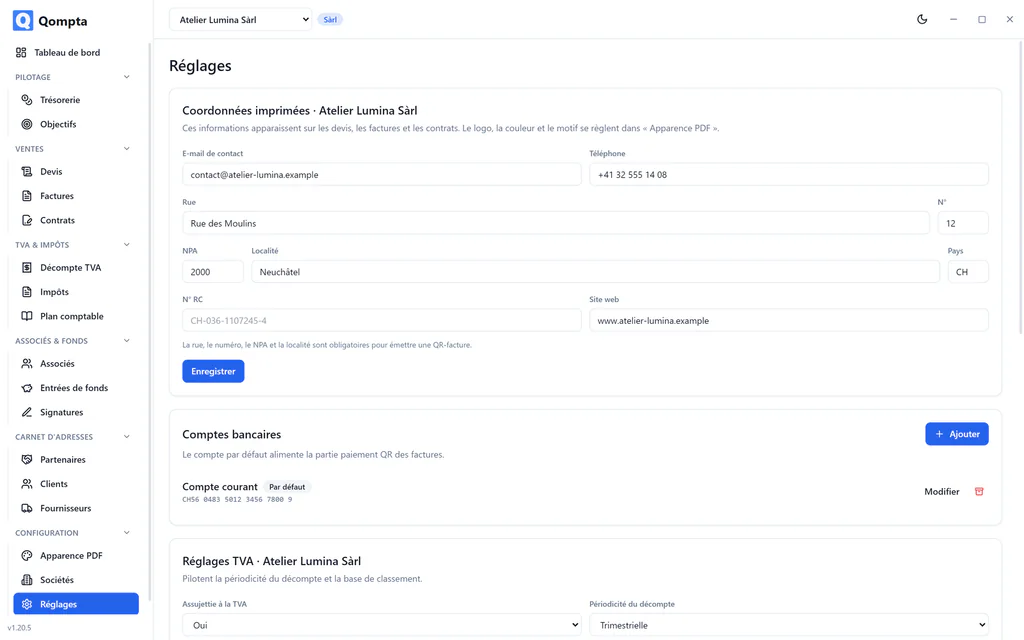
Here you will find the automatic backup folder and how long backups are kept, restore and export.
- Restaurer une sauvegarde (Restore a backup) replaces the current data. The old database is set aside, not deleted.
- Exporter des sociétés (Export companies) writes a
.qexpfile containing the chosen companies, to re-import elsewhere. It is the right tool for moving one company without moving everything else. - Export Excel (Excel export) outputs the data so you can rework it in a spreadsheet.
To move the whole installation, take a .qbak backup and your recovery key, separately.
17. Nothing is irreversible
Qompta has no blocking dialog box. Instead, there is an action bar at the bottom of the screen:
- deletions wait 5 seconds before taking effect, with a visible countdown: « Annuler » (Cancel) calls it off, the cross applies it straight away;
- changes can be undone afterwards, replayed in reverse from a log kept by the application;
- closing a form you have started keeps it aside and offers « Reprendre » (Resume) for 15 seconds.
This holds everywhere: deleting a contact, converting a quote, changing a company's legal form. You can try things without fear. For dry runs, create a test company, the only kind that can be deleted permanently.